USB fingerprint reader for ClockAnywhere enrollment and floor punches. Install the Windows driver, then the ClockAnywhere Fingerprint Helper, in that order.
Windows 10 or 11, 64-bit. USB connection. Install on every PC that will enroll or punch.
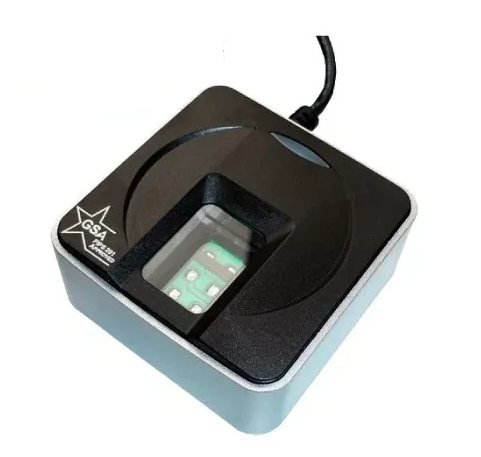
Do not skip a step. The helper will not see the scanner until the USB driver is installed.
Download the driver setup and run it on the Windows PC. Restart if Windows asks you to.
Connect the FS88H to a USB port on that same computer. Wait until Windows finishes detecting the device.
Run the helper installer. Leave it running. It starts with Windows and stays available from the ClockAnywhere icon near the clock.
Open Status from the helper icon. You should see that the reader is ready before you enroll or punch.
In ClockAnywhere Admin, set the company or employee to fingerprint punch. Enroll one finger at a time (place and lift three times). A second finger is optional backup.
The punch kiosk needs the same driver and helper on the computer that has the scanner. Start the helper before anyone punches in.
Windows only. Use these ClockAnywhere files — not a third-party package.
Install this first, then plug in the scanner.
Windows setup · 11.0 MB
Install after the driver. Needed for enroll and punch.
Windows setup · 3.0 MB
Need a scanner? Contact ClockAnywhere to order the FS88H. Repeat the driver and helper install on each Windows PC that will enroll fingerprints or take punches.
Join businesses that eliminated per-employee monthly penalties. Scan at the kiosk, manage schedules in admin, and give employees mobile shift access.
Instant activation • Cancel anytime • Subscriptions managed in-app via PayPal
